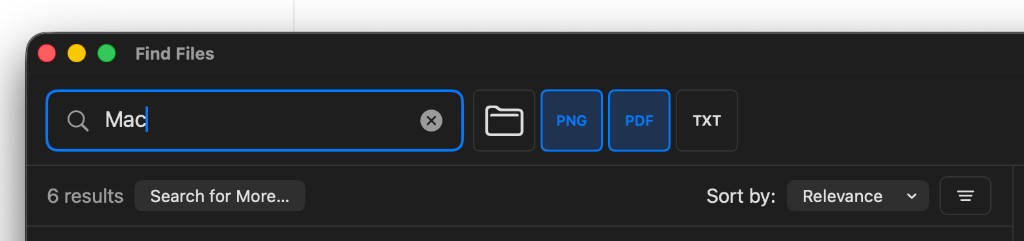

Find Files finds the file you’re looking for on your Mac—not among web results, suggestions, or unrelated matches. Search by name and go directly to the result.

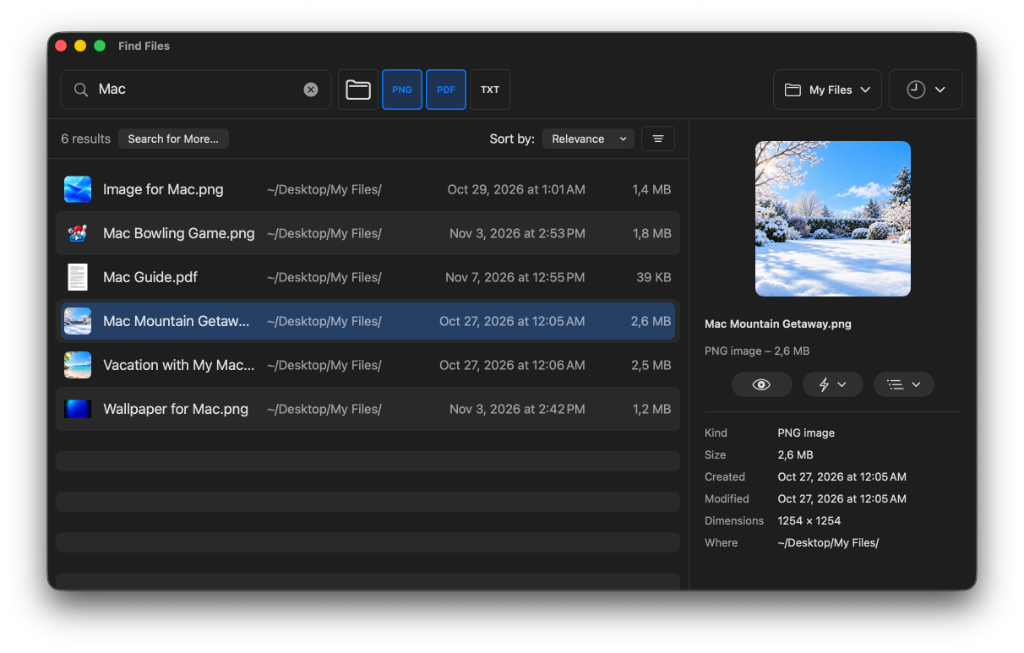
A more focused search
From the name you type to the file you need.
You know the file is on your computer, but can’t remember where. Find Files searches by file name—not document contents—helping you get to the right file without web pages, suggestions, or unrelated results. Search your whole Mac, or narrow the search to a specific folder.
For each result, Find Files shows its location, size, and dates, so when several items share the same name you can tell which one you need. Double-click to open it, click the eye button to show it in its folder, or see the folder path to learn where it’s stored. You can also include system files and application data; everyday folders still appear first.
Designed for the latest versions of macOS, Find Files adapts automatically to light or dark mode. Open the app, search by name, and get to your file.
Filter with chips
One of the features users love most.
When your search returns many kinds of files, Find Files shows a row of type chips above the results—folders, PNGs, PDFs, and so on. Click a chip to hide that type from the list, or click again to bring it back. Searching for “vacation” but only want photos? Hide the rest. Need PDFs only? Keep PDFs visible. Tired of folders filling the results list? Hide folders from the results.
Modifier shortcuts make filtering even faster:
- Option-click a chip: show only that type.
- Option-Command-click: show all types except that one.
- Shift-click: show every type again.